
School is OUT!
Summer break is almost here and we are all trying to gear up, or down, for some time away from the routine schedule. Now is the perfect time to prepare your Stratasys 3D printer for the break as well.
The FDM printers and their materials should last you a long time if you keep a few things in mind. The plastic model and soluble support materials should be unloaded from your printer if they will not be printed for a few weeks or months. To unload the support materials, just follow these steps:
Press the “Material” Button
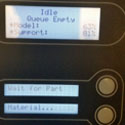
Press the “Unload” Button
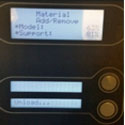
Press the “Unload Both” Button
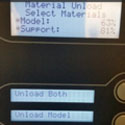
When the display reads (flashes) “Add/Remove”, push in on each cartridge to release it from the material bay. Remove each cartridge one-by-one and trim the end of the material filament at a 45-degree angle; this prepares each filament for reloading when you return later this year. Note that you are not losing any useful print materials because Stratasys manufacturing includes extra material on each spool/cartridge to provide for material change outs. When completed, just press Done at each screen until you arrive at the Idle screen.
Next, place each material container in a large plastic bag that you can seal/zip shut. We find these at big-box stores and the price is very reasonable. Just slip the entire container in the bag, seal it and stow it – that simple. The benefit is that moisture is kept away from the support material and the model material is not exposed to contaminants which means better results for you this fall.
Plan on removing the extrusion tips also for the uPrint and Dimension 1200es printers. Store these in the clear tubes they shipped in or put them into a protective cover. Generally, you can re-install these when you return and continue their use.
We recommend leaving your printer on if possible; this maintains a dry environment for the internal components, while consuming extremely minimal power. If you must turn the printer off, or just prefer to, press the Power switch to the Off position; don’t use the circuit breaker at the rear of the printer. In either case, unplug the network cable from the rear of the printer so that those scattered summer storms don’t find their way through the network system to your printer.
Finally, empty the purge bucket, clean out any debris from the build chamber, and please have a fun, safe summer break!
If you have any further questions we can help you with, please contact our technical support team.
